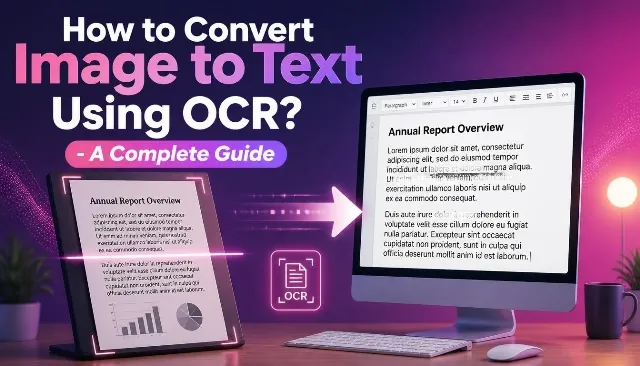
How to Convert Image to Text Using OCR? A Complete Guide
Want to extract text from a photo, screenshot, or scanned document? Learn how to convert images into editable text using OCR. This complete guide explains the process, accuracy tips, common problems, and practical uses of image-to-text conversion.
Extract Text from ImageHave you ever needed to copy a paragraph from a photograph, a screenshot, a printed book, or a scanned document? Manually typing the entire text can take considerable time and may introduce spelling mistakes.
An Image to Text Converter helps solve this problem by recognizing text inside an image and converting it into digital text. This technology is called Optical Character Recognition (OCR).
With OCR, you can extract text from many types of printed materials, including documents, notices, receipts, screenshots, educational notes, and photographs containing readable text. The recognized text can then be reviewed, copied, edited, searched, or saved using compatible applications.
Convert Your Image to Text Online
Use the Image to Text Converter on WriteNepali.com to get started. The available upload options, languages, and extraction controls depend on the OCR tool provided on this page.
What Is OCR (Optical Character Recognition)?
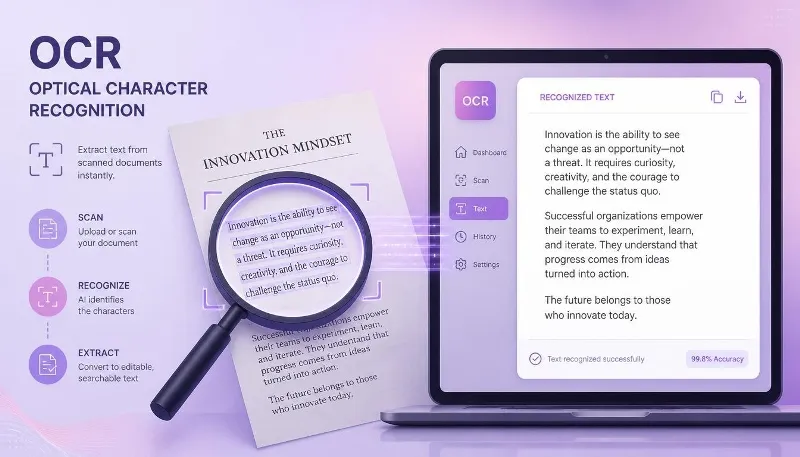
Optical Character Recognition, commonly called OCR, is a technology that identifies text characters within an image and converts them into machine-readable text.
A normal image contains visual information such as pixels, colors, shapes, and patterns. Even if a photograph clearly displays a paragraph, your computer may not recognize the paragraph as selectable text.
OCR analyzes the image, identifies areas that appear to contain text, recognizes character patterns, and produces a digital text output. Modern OCR systems may use machine-learning models to recognize printed characters and different writing styles.
Image Input
OCR starts with a photo, screenshot, scan, or another supported image containing text.
Text Recognition
The OCR engine analyzes the image and identifies possible letters, words, and lines.
Editable Output
Recognized characters become digital text that can be reviewed and copied.
OCR is especially useful when the original text exists only in a printed or photographed form. It can reduce manual typing, although the output should always be checked for recognition errors.
How to Convert an Image to Text Using OCR: Step-by-Step Guide
Follow these general steps to extract text from an image. The exact interface may differ depending on the OCR implementation used by the website.
-
Open the Image to Text Converter
Visit the OCR tool on WriteNepali.com and locate the image upload or selection area. -
Select your image
Choose a supported image file from your computer or mobile device. Use a clear photograph, screenshot, or scanned document containing readable text. -
Choose the recognition language
If the tool provides language settings, select the language used in the image. Language selection can significantly affect recognition results. -
Start the OCR process
Click the available Extract Text, Convert, Recognize, or similar button to begin processing. -
Wait for text recognition
Allow the tool to analyze the image. Processing time can vary based on image dimensions, complexity, device performance, and the OCR system. -
Review the extracted text
Check spelling, punctuation, numbers, names, formatting, and any characters that may have been recognized incorrectly. -
Copy or save the text
Use the available copy or download option. If those features are unavailable, select the recognized text manually and copy it.
What Types of Images Can OCR Convert to Text?
OCR can recognize text from many image types when the characters are sufficiently clear and the file format is supported by the tool.
Photographs
Extract text from photos of printed pages, notices, signs, labels, and documents.
Screenshots
Recognize text from screenshots of websites, software, messages, and digital documents.
Scanned Documents
Convert scanned letters, printed forms, reports, and document pages into text.
Printed Books
Extract passages from clear photographs or scans of printed book pages.
Receipts and Invoices
Recognize printed information from receipts and invoices, subject to image quality.
Educational Materials
Extract printed notes, textbook passages, assignments, and classroom materials.
OCR results depend on the actual image and recognition engine. Some formats may require conversion before uploading. Check the file types accepted by the tool.
Supported Image Formats for OCR
Different OCR tools support different file formats. Common image formats include JPG, JPEG, and PNG. Some tools may also accept WebP, BMP, TIFF, or other formats.
| Image Format | Description | OCR Consideration |
|---|---|---|
| JPG / JPEG | Common format for photographs and scanned images. | Compression artifacts can affect small text. |
| PNG | Common format for screenshots and graphics. | Often useful for sharp text and interface screenshots. |
| WebP | Modern image format used on websites. | Availability depends on the OCR tool. |
| BMP | Bitmap image format. | Check whether the converter accepts it. |
| TIFF | Frequently used in scanning and document workflows. | May not be supported by every online OCR tool. |
| Document format that may contain text or scanned pages. | Some tools support PDF OCR; others require images. |
If your image is not accepted, convert it to a supported format before uploading. For example, you may be able to use a JPG or PNG version of the original image.
Can OCR Extract English and Nepali Text?
OCR language support depends on the recognition engine and the language models available in the tool. English OCR is commonly supported, while Nepali recognition requires suitable Devanagari language support.
If you want to extract Nepali text from an image, check whether the OCR tool supports Nepali or Devanagari recognition. Selecting the correct language is important for accurate results.
English OCR
English OCR can be useful for extracting paragraphs, headings, printed instructions, receipts, and text from screenshots. Clear printed English generally provides better recognition conditions than blurry or handwritten text.
Nepali OCR
Nepali OCR requires a recognition model that supports the Devanagari script and the language features present in the image. Some engines support Hindi or Devanagari without providing identical recognition quality for Nepali. Do not assume that every Hindi OCR tool accurately recognizes Nepali.
Mixed English and Nepali Text
Documents containing both English and Nepali may require multilingual recognition support. If the OCR tool does not support mixed-language text, you may need to process the languages separately or correct the output manually.
How to Improve OCR Accuracy
Image quality is one of the most important factors affecting text recognition. A good image makes it easier for OCR software to distinguish characters, punctuation, and spaces.
Use a Clear Image
Capture or scan the text sharply. Avoid blurry photographs and motion blur.
Improve Lighting
Use even lighting and avoid shadows, glare, and reflections.
Keep Text Straight
Photograph the page from directly above or in front instead of at a steep angle.
Choose the Right Language
Select the language that matches the text when the tool provides this option.
Crop Unnecessary Areas
Remove irrelevant backgrounds and focus the image on the text you want to extract.
Use Readable Text
Avoid extremely small text, decorative fonts, and low-contrast images.
1. Use High-Quality Images
A sharp image with sufficiently large characters gives OCR more visual information to work with. If possible, use a high-resolution scan or capture the text at a readable size.
2. Improve Contrast
Dark text against a light, plain background is generally easier to recognize than text with similar colors to its background.
3. Avoid Skewed and Curved Pages
Keep documents flat when scanning or photographing. Curved book pages, rotated text, and perspective distortion can make recognition more difficult.
4. Remove Background Clutter
Crop out unnecessary objects, illustrations, and large decorative backgrounds when possible. Focus on the region containing the text.
5. Select the Correct OCR Language
A language mismatch can produce incorrect characters and words. Select the appropriate language or script whenever the OCR tool provides language settings.
6. Proofread the Final Output
OCR may confuse similar-looking characters, punctuation, or digits. Compare the extracted text with the original image before using it.
What Are the Limitations of OCR?
OCR is useful, but it is not perfect. It may struggle with images that contain unclear, distorted, or complicated text.
| Image Condition | Possible OCR Problem | Suggested Improvement |
|---|---|---|
| Blurry image | Characters may be confused or missing. | Use a sharper image. |
| Low resolution | Small letters may be difficult to identify. | Use a higher-resolution scan. |
| Handwriting | Letters may connect or vary in shape. | Use handwriting-capable OCR if available. |
| Decorative fonts | Unusual letter shapes may be misread. | Use a simpler text image when possible. |
| Complex background | Text may blend into the surrounding image. | Crop or improve contrast. |
| Mixed languages | Some words may be recognized incorrectly. | Use suitable multilingual OCR. |
| Tables and columns | Reading order or layout may change. | Check the original structure carefully. |
OCR may extract the words without preserving the original formatting. Tables, columns, line breaks, and complex layouts may need to be recreated manually.
Practical Uses of Image to Text OCR
1. Extract Text from Screenshots
OCR can help copy text from screenshots of websites, software interfaces, error messages, and other digital content that cannot be selected directly.
2. Convert Printed Notes into Digital Text
Students and teachers can use OCR to extract text from printed study notes, classroom materials, and textbook pages. Review the output before using it in assignments.
3. Digitize Printed Documents
OCR can help turn printed letters, notices, reports, and forms into searchable digital text. This can make document organization easier.
4. Copy Text from Photos
If a photograph contains a readable paragraph, address, sign, or label, OCR may help extract the text without manually typing every character.
5. Extract Text from Receipts
OCR can recognize printed information from receipts and invoices. However, verify dates, prices, totals, and other financial information because recognition mistakes can be costly.
6. Prepare Text for Translation
Extract text from an image first, then copy the recognized text into a translation tool. OCR itself does not translate the content.
7. Make Printed Content Searchable
OCR can help convert image-based text into searchable digital text. This is useful for organizing notes and locating specific words in digitized materials.
OCR vs. Manual Typing: Which Is Better?
| Feature | OCR | Manual Typing |
|---|---|---|
| Speed | Can extract large amounts of text quickly. | May take longer for lengthy documents. |
| Accuracy | Depends on image quality and OCR model. | Depends on typing skill and proofreading. |
| Best use | Printed text in clear images and scans. | Short text, corrections, and difficult handwriting. |
| Formatting | May not preserve original layout. | Can be recreated manually as needed. |
| Review | Proofreading is important. | Proofreading is also recommended. |
OCR is often convenient for extracting large amounts of printed text. Manual typing may be preferable for short passages, unclear handwriting, or documents where exact formatting is essential.
Is It Safe to Extract Text from Images Online?
Before uploading an image to an online OCR service, consider whether it contains personal or confidential information. Images may include names, addresses, signatures, account details, medical records, or business information.
Check the privacy policy and file-processing practices of the OCR tool before using it with sensitive documents. Some tools process images in the browser, while others send files to a server for recognition.
For sensitive documents, follow your organization’s security requirements and use a trusted processing method.
Explore More Tools on WriteNepali.com
You may also find these related tools useful for working with text, images, and documents.
Frequently Asked Questions About Image to Text OCR
1. What is OCR in image-to-text conversion?
OCR stands for Optical Character Recognition. It is a technology that identifies characters in images and converts them into machine-readable text that can be copied, edited, or searched.
2. How do I convert an image to text online?
Open an OCR tool, upload a supported image, select the recognition language if available, start text extraction, review the result, and copy or download the recognized text.
3. Is image-to-text OCR free?
Free access depends on the OCR tool and its usage restrictions. Check the available features and limits on the tool page.
4. Can OCR extract text from screenshots?
Yes. OCR can recognize text in screenshots when the characters are clear and the screenshot format is supported.
5. Can OCR extract text from JPG and PNG images?
Many OCR tools support JPG, JPEG, and PNG. However, supported formats vary by tool. Check the upload requirements before selecting your image.
6. Can OCR recognize Nepali text?
Nepali OCR requires suitable Devanagari language support. Check whether the tool supports Nepali specifically, and proofread the output carefully.
7. Can OCR recognize handwritten text?
Some advanced OCR systems support handwriting, but recognition is often less reliable than printed text. Cursive handwriting and unclear characters may require manual correction.
8. Why does OCR produce incorrect text?
Blurry images, low resolution, poor contrast, unusual fonts, incorrect language selection, and complex backgrounds can reduce recognition accuracy.
9. How can I improve OCR accuracy?
Use a sharp, high-resolution image with good lighting and contrast. Keep the text straight, crop unnecessary areas, select the correct language, and proofread the result.
10. Does OCR preserve the original formatting?
Not always. OCR focuses on recognizing text. Tables, columns, spacing, and complex page layouts may need to be corrected or recreated.
11. Can I extract text from a scanned document?
Yes. OCR can recognize text from scanned documents when the scan is clear and the document format is supported by the tool.
12. Can OCR extract text from a PDF?
Some OCR tools accept PDF files directly. Others require you to convert the relevant PDF page into an image first. Check the tool’s supported input formats.
13. Is OCR the same as image translation?
No. OCR extracts text from an image. Translation changes the recognized text from one language into another. You can use both processes together.
14. Can OCR recognize text from a photo of a book?
OCR can recognize printed book text if the image is sufficiently clear. Curved pages, shadows, small fonts, and page distortion may reduce accuracy.
15. Can I copy OCR text into Microsoft Word?
Yes. Once the text is extracted, you can generally copy and paste it into Word or another compatible text editor. Check formatting and spelling afterward.
16. Does OCR work on mobile phones?
Many online OCR tools can be accessed through mobile browsers. Compatibility and processing speed depend on the device, browser, image, and tool.
17. Is online OCR safe for private documents?
Safety depends on the service’s file processing and privacy practices. Review its privacy policy and avoid uploading sensitive files unless you trust the processing method.
18. Why is OCR taking a long time?
Processing time may depend on image dimensions, document complexity, language data, device performance, internet connection, or server workload.
19. Can OCR extract text from a low-quality image?
It may recognize some text, but results can be inaccurate. Improve image clarity, contrast, lighting, and resolution before trying again.
20. Should I proofread OCR output?
Yes. Always review the extracted text, especially names, dates, numbers, addresses, financial values, and Nepali characters.
Convert Images into Editable Text with OCR
OCR makes it easier to extract text from photographs, screenshots, scanned documents, and printed materials. Instead of typing everything manually, you can use an Image to Text Converter to recognize the text and create a digital version.
For the best results, use clear images, select the appropriate language, and review the extracted text before copying it into your documents. Remember that OCR is a recognition technology, so some manual correction may still be necessary.
Visit the Image to Text Converter on WriteNepali.com and try extracting text from your image.