Image to Text OCR Converter
Upload an image containing text to extract and convert it instantly.
Drag & drop your image here or Browse File
Image to Text Converter – Extract Text from Any Image Online
Turn pictures into editable text with a simple online OCR tool. Upload an image, extract the words, and copy the results without manually typing everything.
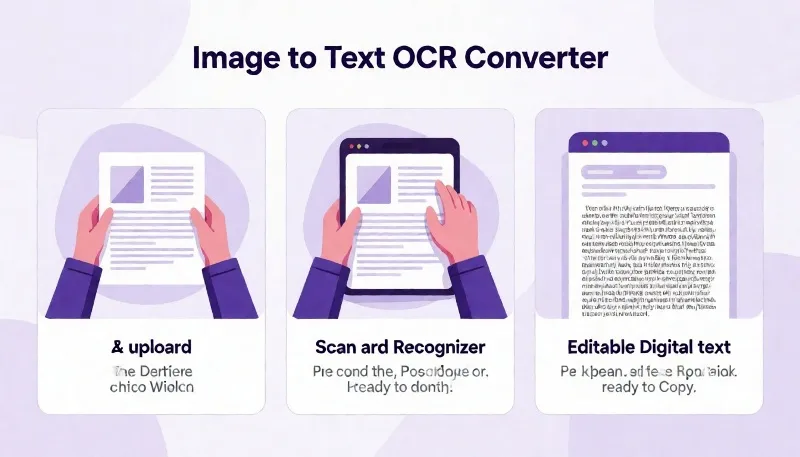
Have you ever received a photograph of a document and needed to type everything written inside it? Perhaps you have a screenshot containing important information, a scanned page from a book, or a picture of handwritten notes. Typing all that information manually can take unnecessary time. An Image to Text Converter makes this process easier by helping you extract written content from an image using Optical Character Recognition (OCR) technology.
The WriteNepali Image to Text Converter is an online tool designed to help users turn text-containing images into digital text. Instead of repeatedly looking at a photograph and typing each sentence, you can upload an image, run the extraction process, and copy the available text from the result area.
Whether you are a student collecting information from study materials, a professional working with scanned documents, a content creator organizing screenshots, or someone who regularly receives pictures containing written information, converting an image into text can make everyday tasks more convenient.
It uses OCR (Optical Character Recognition) to analyze an uploaded image and attempt to recognize the characters and words visible in that image. The recognized content is displayed as text that you can review and copy.
What Is an Image to Text Converter?
An Image to Text Converter is a digital tool that identifies written characters inside an image and converts them into machine-readable text. This process is commonly known as Optical Character Recognition, or OCR.
Normal image files such as JPG, JPEG, and PNG store visual information. Even when a photograph contains a complete paragraph, your computer generally treats the words as part of the picture rather than as editable text. You cannot directly select a sentence from an ordinary photograph in the same way you can select text in a document.
OCR technology helps bridge this gap. It examines the visual patterns of letters, numbers, and symbols and attempts to identify the text represented by those patterns. The resulting content can then be presented as ordinary digital text.
For example, imagine taking a picture of a printed notice. Without OCR, you would normally need to type the notice yourself if you wanted to edit or reuse its contents. With an Image to Text Converter, you can upload that picture and let the recognition system attempt to extract its written information.
OCR is useful for printed materials, screenshots, forms, labels, notes, and many other image-based documents. However, the quality of the original image and the recognition system both influence the final result.
How to Extract Text from an Image Online
Using the WriteNepali Image to Text tool is straightforward. You do not need to manually recreate the content of a picture before trying to extract its text. Follow these simple steps to get started.
-
Open the Image to Text Converter
Visit the Image to Text page on WriteNepali.com using your preferred browser. The image upload area is available on the tool page.
-
Select your image
Click the Browse File option or use the upload area to select an image from your device. Choose a picture that contains clearly visible text.
-
Start the OCR extraction process
After selecting the image, click the Extract Text (OCR) button to begin processing. Allow the tool to complete its recognition process.
-
Review the extracted text
Once processing is complete, check the extracted text displayed in the output section. Compare it with the original picture to identify any recognition mistakes.
-
Copy the extracted content
Use the Copy Extracted Text button to copy the recognized content. You can then paste it into a document, note-taking application, or another editor.
-
Clear the results when needed
If you want to process another picture, use the Clear All option and begin a new extraction.
Use a clear, properly oriented image with good lighting and readable text. Blurry photographs, shadows, unusual fonts, and very small characters can reduce OCR accuracy.
Why Use an Online Image to Text Converter?
Digital information is often shared as images. A teacher may send notes as photographs, a business may receive product information as a scanned document, or a friend may share a screenshot containing useful details. Although images are convenient for viewing, working with their written contents can be difficult.
An online Image to Text Converter provides a practical way to handle these situations. Here are some of the reasons people use OCR tools in their everyday activities.
Save Manual Typing Time
Extracting text can be faster than manually typing long paragraphs from photographs or printed materials.
Work with Digital Content
Recognized text can be copied into documents, emails, notes, and other applications for further editing.
Organize Information
Convert useful information from pictures into text that is easier to organize and search.
Extract Text from Screenshots
Make information inside screenshots easier to reuse without rewriting every sentence.
Support Study Activities
Students can use OCR to help transfer readable information from study materials into digital notes.
Convenient Online Access
Use an online converter through a compatible web browser without needing a separate desktop OCR application.
Which Images Can You Convert into Text?
OCR technology can work with many types of text-containing images. The actual file formats accepted by a converter depend on its upload configuration. Common image formats used for OCR include JPG, JPEG, and PNG.
JPG and JPEG Images
JPG and JPEG are widely used image formats, particularly for photographs taken with mobile phones and digital cameras. They are commonly used to store pictures of printed pages, notices, signs, and other text-containing materials.
If you have a photograph containing readable printed information, a JPG or JPEG image may be suitable for OCR processing, provided that the converter accepts that format.
PNG Images
PNG is another popular format for screenshots, graphics, and digital documents. Screenshots often contain sharp text and clearly defined characters, making suitable PNG files useful candidates for text recognition.
Photographs of Printed Documents
A photograph of a printed page can contain paragraphs, headings, numbers, and other written information. OCR may help identify those elements and convert them into editable text.
Scanned Document Images
Scanned pages are frequently stored as images. Instead of treating a scanned page as a picture alone, OCR can attempt to recognize its visible text and make the information easier to reuse.
Screenshots and Digital Pictures
Screenshots of online articles, messages, instructions, and educational material are common sources of image-based text. Converting these screenshots can make their contents easier to copy and organize.
How Does OCR Technology Work?
OCR stands for Optical Character Recognition. It is a technology that helps computers recognize text from visual information. Rather than simply storing an image as pixels, OCR software analyzes the image and attempts to identify the characters represented by those pixels.
Although different OCR systems use different recognition methods, the overall process generally involves several stages.
1. Image Input
The process begins when a user uploads an image. The image may contain printed text, numbers, headings, or other recognizable characters.
2. Image Processing
The OCR system analyzes the image. Depending on the technology used, it may prepare the image for recognition by examining contrast, alignment, brightness, and character shapes.
3. Character Recognition
The recognition engine examines visible patterns and attempts to identify letters, numbers, and symbols. Modern OCR solutions may use machine learning and trained recognition models to improve this process.
4. Text Generation
After recognizing the characters, the system generates a digital text output. The result may contain words, sentences, numbers, and line breaks depending on the original document and OCR system.
5. Reviewing the Results
The extracted content should be checked against the original image. Some characters may be misidentified, particularly when the image is unclear or the writing style is unusual.
Practical Uses of Image to Text Conversion
Image-to-text conversion is not limited to one particular profession or activity. It can be useful whenever important written information is available as a picture rather than an editable document.
For Students and Teachers
Students frequently receive study materials through photographs, screenshots, and scanned pages. OCR can help them transfer recognized content into digital notes for reviewing, organizing, and studying.
Teachers may also find text extraction useful when working with printed educational materials or photographed classroom notes. Extracted content can be reviewed and adapted for digital teaching resources.
For Office Workers and Professionals
Office professionals sometimes receive documents as images instead of editable files. OCR can help extract information from suitable documents, reducing the need to retype every visible sentence.
For important business records, invoices, forms, and official documents, always verify extracted information before using it in a formal record.
For Bloggers and Content Creators
Bloggers and content creators regularly work with screenshots, research materials, and visual references. Converting suitable images into text can help them collect information and organize their research.
However, extracted text should not automatically be republished as original content. Always respect copyright, attribution requirements, and the rights of the original content owner.
For Businesses and Shop Owners
Businesses may receive product details, printed notices, labels, and other information in image format. OCR can help transfer recognized text into digital records or working documents.
For Everyday Mobile Users
Sometimes a picture contains an address, phone number, instruction, or other information that you want to reuse. An Image to Text Converter can make this information easier to copy, provided the OCR system recognizes it correctly.
Tips to Get Better OCR Text Extraction Results
Not every image produces perfect text extraction. Even advanced OCR technology can struggle with poor-quality photographs, distorted characters, unusual fonts, or complicated layouts. A few simple improvements can help you get better results.
- Use clear images: Choose photographs in which the letters are easy to read.
- Avoid blurry pictures: Focus the camera properly before taking a photograph.
- Maintain proper lighting: Avoid dark areas, reflections, and strong shadows.
- Keep the document straight: Rotate tilted photographs before uploading them.
- Choose readable text: Very small fonts may be difficult for OCR systems to recognize.
- Use sufficient resolution: Images with enough detail generally provide better recognition opportunities.
- Keep the background simple: Busy backgrounds can make character recognition more difficult.
- Review the extracted output: Always compare the result with the original picture.
OCR is a recognition technology, not a guarantee of perfect transcription. Names, dates, phone numbers, mathematical expressions, and financial figures deserve extra attention during proofreading.
Common Reasons Why Image to Text Conversion May Not Work Properly
If the extracted text does not look correct, the issue may be related to the original image, the supported language, or the recognition engine. Understanding these limitations can help you decide what to change before trying again.
Low-Quality or Blurry Images
When characters are blurred, the OCR engine may struggle to distinguish similar-looking letters. Try uploading a clearer photograph or a higher-quality scan.
Handwritten Text
Handwriting is often more difficult to recognize than standard printed text. Different writing styles, joined letters, and inconsistent spacing can affect extraction accuracy. Results depend on whether the recognition engine supports handwriting.
Unsupported Languages
OCR engines do not necessarily recognize every language or script. If a picture contains Nepali, Devanagari, or another language, successful extraction depends on the language capabilities of the OCR engine configured in the tool. Check the extracted results carefully, especially for special characters and combined letters.
Complex Document Layouts
Documents containing multiple columns, tables, stamps, diagrams, and mixed formatting can be challenging. OCR may recognize individual words but fail to preserve the original arrangement.
Decorative Fonts and Special Characters
Artistic fonts, unusual symbols, and stylized text can produce recognition mistakes. Using a more standard printed font in the source image can improve readability.
Can You Extract Nepali Text from an Image?
Nepali is commonly written using the Devanagari script. Many people encounter Nepali text in photographs of books, school notes, newspapers, government notices, printed forms, and screenshots.
Extracting Nepali text from these images can be useful for students, teachers, writers, researchers, and people who want to reuse information from printed Nepali materials.
However, recognizing Devanagari text requires an OCR engine that supports the relevant script and language. Not every general-purpose image-to-text system has reliable Nepali recognition capabilities.
If you are working with Nepali text, test the converter using a clear image and inspect the output carefully. Pay special attention to vowel signs, combined consonants, punctuation, and similar-looking characters.
For documents containing both Nepali and English, the recognition engine must also be able to handle the languages present in the image. Mixed-language results should always be proofread before they are reused.
Nepali OCR support depends on the actual OCR engine and its configured language models. Do not assume that every uploaded Nepali document will be recognized correctly.
Is It Safe to Upload Images for Text Extraction?
Before uploading an image to any online OCR service, consider what information it contains. Some pictures may include personal details, financial information, identity documents, private conversations, or confidential business records.
You should avoid uploading sensitive documents unless you have reviewed the website’s privacy policy and understand how the uploaded information is processed, stored, and handled.
If an image contains confidential information, consider removing unnecessary personal details before uploading it. You should also avoid sharing private documents with people who are not authorized to access them.
Remember that using an online OCR tool does not automatically make an uploaded document private or guarantee that it will never be stored. Always make an informed decision before uploading sensitive material.
Image to Text Converter vs. Manual Typing
Both OCR conversion and manual typing can be used to transfer information from an image into a digital document. The better option depends on the image quality, document length, and accuracy requirements.
| Feature | OCR Conversion | Manual Typing |
|---|---|---|
| Process | Automated recognition | Human input |
| Long documents | Can reduce repetitive work | Can require considerable time |
| Accuracy | Depends on image and OCR quality | Depends on the person typing |
| Editing | Produces text for review | Text can be entered directly |
| Best use | Suitable printed images and screenshots | Precise transcription and difficult images |
OCR can be a convenient starting point for extracting text, while manual correction remains important whenever accuracy matters. In many situations, combining both methods provides a practical workflow.
Who Can Benefit from an Image to Text Tool?
An online OCR converter can be useful for almost anyone who regularly works with information stored in image files. Its usefulness depends on the type of content and the recognition capabilities of the software.
- Students converting suitable study material into digital notes.
- Teachers preparing editable educational content.
- Office employees handling scanned documents.
- Researchers collecting information from printed sources.
- Bloggers organizing text from visual references.
- Business owners transferring information from printed materials.
- Writers collecting text from photographs and screenshots.
- Everyday users who want to copy words from a picture.
Ready to Extract Text from Your Image?
Stop retyping every word from your pictures. Open the WriteNepali Image to Text Converter, upload a suitable image, and let OCR help you extract its written content.
Use Image to Text Converter →Frequently Asked Questions About Image to Text Conversion
Have questions about extracting text from images? Here are answers to some common questions about OCR technology and online image-to-text conversion.
1. What is an Image to Text Converter?
An Image to Text Converter is an online or software-based tool that uses Optical Character Recognition (OCR) to identify written characters inside an image and convert them into digital text. It can be useful for extracting information from photographs, screenshots, and scanned documents.
2. How can I extract text from an image online?
Open the WriteNepali Image to Text Converter, upload an image containing readable text, and click the Extract Text (OCR) button. After processing, review the output and use the Copy Extracted Text option to copy the recognized content.
3. Is the WriteNepali Image to Text Converter free?
The WriteNepali page provides an online image-to-text conversion interface. Check the live tool for its current access conditions, processing limits, and any usage restrictions.
4. Can I convert JPG images into text?
Yes, JPG images can be processed by OCR tools that support the format. Upload a clear JPG photograph containing readable text and start the recognition process. The result depends on image quality and OCR language support.
5. Can I extract text from PNG images?
Yes, PNG is a common format for screenshots and digital images. If the converter accepts PNG files, you can upload a screenshot or picture and attempt to extract its visible text.
6. Can I extract Nepali text from an image?
Nepali text extraction is possible with OCR systems that support the Devanagari script and Nepali language. However, recognition quality depends on the specific OCR engine. Test a clear Nepali image and check the output for spelling and character mistakes.
7. Can OCR recognize handwritten text?
Some OCR systems support handwriting recognition, but ordinary printed-text recognition systems may not handle handwritten content well. Results vary depending on handwriting style, image quality, language, and the OCR technology being used.
8. Why is my extracted text incorrect?
Incorrect results can occur because of blurry photographs, low resolution, poor lighting, unusual fonts, tilted documents, handwriting, or unsupported languages. Try using a clearer, straightened image and review the extracted content before using it.
9. Can I convert a screenshot into editable text?
Yes. A screenshot containing readable text can be uploaded to a compatible OCR converter. The tool attempts to recognize the words and display them as digital text that you can copy and reuse.
10. Can I copy the extracted text?
Yes. After the OCR process finishes, review the output and click the Copy Extracted Text button on the WriteNepali tool. You can then paste the recognized content into a compatible application.
11. Does converting an image into text preserve its original formatting?
Not necessarily. OCR primarily focuses on recognizing characters. Some systems preserve basic line breaks and document structure, but complex formatting, tables, columns, and image layouts may not be reproduced exactly.
12. Is OCR the same as converting an image into a PDF?
No. Converting an image into a PDF generally places the image inside a PDF document. OCR, on the other hand, attempts to recognize the written characters and produce machine-readable text. A searchable PDF may combine both processes.
13. Can I use an Image to Text Converter on my mobile phone?
An online converter can be accessed from a mobile browser when the website and device support its upload and processing features. You can select a suitable image from your phone and attempt text extraction.
14. Is OCR 100% accurate?
No. OCR systems can make recognition mistakes, especially with unclear photographs, handwriting, special characters, and unsupported languages. Always proofread important extracted information.
15. Are my uploaded images stored or shared?
Image handling depends on the tool’s actual processing and privacy configuration. Review the website’s privacy policy before uploading sensitive documents. Do not assume that an online upload is automatically private or immediately deleted.
Final Thoughts: Make Image Text Extraction Easier with WriteNepali
Extracting information from pictures should not always require hours of manual typing. With OCR technology, suitable image files can be converted into digital text more conveniently.
The WriteNepali Image to Text Converter offers a simple way to upload a picture, attempt text recognition, review the result, and copy the extracted content. It can be useful for students, teachers, professionals, bloggers, business owners, and everyday internet users.
For the best experience, start with a clear image, use supported file formats, and proofread the output before relying on it. OCR is a helpful productivity tool, but checking the final text is still important.
Visit WriteNepali.com to explore practical online tools designed to make everyday digital tasks easier.